
Why "on the phone" is the right framing for this version of the question
The umbrella version of this question (how to reduce screen time in general) is mostly about habits and life design. The adult version (how to reduce screen time as an adult) is about opportunity cost. This version is about the device. About what's actually configured on the phone in your hand, which settings you've never opened, and the small physical moves that make the biggest measurable difference. If we are being real, most adults who land here have already heard the philosophical case for reducing phone use. They want the buttons.
The good news, and the structural reason this approach works, is that the phone responds to configuration much more than it responds to discipline. Most heavy phone users could cut 60 to 150 minutes a day off their use without changing a single decision they consciously make, just by changing the defaults the phone is shipping with. The Phone Friction Audit below is the version of that argument with numbers attached.
The Phone Friction Audit
Check what you currently have configured. The audit estimates the minutes you're already saving per day versus a heavy-default phone, and surfaces the highest-impact next moves you haven't made. The minute estimates are anchored to research on phone interruption costs, lived experiment reports, and the cumulative behavioral patterns most adults run. They aren't exact predictions for your phone; they're a useful baseline for what kind of move produces what kind of effect.
- Check at least one box above to see your next moves.
The phone is configurable. Most people never reconfigure it, then blame themselves when the default config beats their willpower. The friction stack is the cheat sheet you didn't get.
iOS Screen Time: the deep dive
Apple's Screen Time has more depth than most people use, and the default configuration is intentionally light. The five settings below, applied together, do most of the work most adults actually want from the feature.
The five settings most people don't configure
- Set a separate Screen Time passcode.
Settings > Screen Time > Use Screen Time Passcode.Critical: this should NOT be the same as your device passcode. The whole point is that you can't dismiss your own limits in the moment. - Set Downtime.
Settings > Screen Time > Downtime.9 PM to 7 AM is the common starting point. During Downtime, only Always Allowed apps work; everything else requires tapping through a screen that asks if you really want to. - Set App Limits on your top 2 apps.
Settings > Screen Time > App Limits.Set limits on specific apps (not the Social or Entertainment categories, which feel arbitrary). Common targets: Instagram 30 min, TikTok 20 min, X 15 min. These are starting points; tune to what holds. - Curate Always Allowed.
Settings > Screen Time > Always Allowed.Strip this list to actual essentials. Phone, Messages, Maps, Calendar, and apps you genuinely use in emergencies. The shorter this list, the more Downtime actually does for you. - Turn on Communication Limits during Downtime.
Settings > Screen Time > Communication Limits.Restrict who can reach you after hours. The friction of an exception (most people are willing to grant your spouse, kids, parents) prevents the all-purpose "I'm still on the phone for work" rationalization at 11 PM.
The passcode separation is the single change most people skip and most regret skipping. Without it, every limit is a soft suggestion. With it, the limits are structural. The version that holds, in lived practice, is the version where the passcode is written down somewhere inconvenient (a drawer in the kitchen, a note in your partner's phone) so that dismissing the limit requires getting up and walking, not tapping.
Android Digital Wellbeing: the deep dive
Google's equivalent has slightly different naming but covers the same ground. Five settings, applied together, do most of the work.
The five settings most people don't configure
- Set Bedtime Mode.
Settings > Digital Wellbeing & parental controls > Bedtime mode.Equivalent to iOS Downtime. Schedule it for 9 PM to 7 AM. Grayscale during Bedtime is an option worth enabling; it strips the dopaminergic pull of color-saturated feeds in the evening hours. - Set up Focus Mode.
Settings > Digital Wellbeing > Focus mode.Pick apps to pause during defined work windows. A scheduled version (e.g., Focus mode 9 AM to noon, Mon-Fri) is the version most knowledge workers actually use. - Set App Timers on your top 2 apps.
Settings > Digital Wellbeing > Dashboard.Tap the hourglass next to each app and set a daily limit. Like iOS, these work better when set on specific apps than on categories. - Manage notifications by app.
Settings > Notifications > App settings.Sort by Most recent first to identify the worst offenders. Default state for most adults: 80 percent of notifications are non-essential and quietly draining attention. - Heads Up reminders. A small but useful feature: phone vibrates when you've been walking and using the phone for a defined period. Lives under
Digital Wellbeing > Show your goal > Heads Up.The reminder breaks the unconscious walk-and-scroll pattern.
Notification minimalism (the highest-leverage thing most people miss)
Stothart, Mitchum, and Yehnert (2015) ran one of the cleaner studies in this space. Participants performed an attention task while receiving notifications they couldn't respond to. Even though they didn't answer, even though they didn't pick up the phone, the notifications measurably degraded their task performance. The cognitive cost of a notification isn't paid when you answer it. It's paid when it arrives.
The implication: the highest-leverage move on most phones isn't reducing the time you spend on the phone. It's reducing the number of times the phone interrupts you. Estimates for the average adult phone vary, but 60 to 150 notifications per day is typical, and 80 percent or more are non-human (the app deciding you'd want to know about something, not a person reaching out to you).
The clean rule of thumb: human-to-human notifications stay on. App-to-human notifications go off. Texts from people you know, calls, calendar reminders for events you scheduled, alarms. On. Instagram telling you that someone you follow posted a story. News apps with breaking headlines. Shopping apps with sales. All off. Most adults who run this audit have a measurably calmer phone within a day, and the surprising part is that they don't miss the deleted notifications at all.
The home screen audit
Your home screen is the surface you see hundreds of times per day. The phone industry knows this; the apps on a default home screen are not there by accident. The audit that flips this back in your favor is short and structural.
How to do a real home screen audit (10 minutes)
- Page one should be tools only. Phone. Messages. Camera. Maps. Calendar. Weather. A note-taking app. Things that solve specific tasks. Nothing that scrolls.
- Move all social and feed apps off page one. Instagram, TikTok, X, Facebook, Reddit, YouTube, news apps. To page two or three, or into a single folder labeled something dull ("Apps"). The two extra taps are real friction.
- On iOS: use the App Library. Remove the social apps from the home screen entirely. They still exist in the App Library and via search, but you have to look for them deliberately.
Long-press app icon > Remove from Home Screen. - Wallpaper to something calm. Solid colors, simple gradients, or a soft photo. Busy wallpapers add cognitive load every time you unlock the phone.
- Widgets that work for you, not against. Calendar, weather, screen-time widget, a quote. Not news. Not stock tickers. Not social-app shortcuts.
Grayscale and other visual friction
The apps you spend the most time on are designed for color-saturated visual reward. Instagram thumbnails, TikTok For You feeds, YouTube recommendations. The whole design pipeline assumes vivid color. Grayscale strips it out. The result, in lived practice and in a growing self-experiment literature, is that the same content becomes meaningfully less compelling to scroll.
Setup is fast. iOS: Settings > Accessibility > Display & Text Size > Color Filters > Grayscale. Then assign the Accessibility Shortcut: Settings > Accessibility > Accessibility Shortcut > Color Filters. Triple-tap the side button to toggle. Android: Settings > Accessibility > Color Correction > Grayscale. Variable by manufacturer; some Androids have it under Digital Wellbeing > Bedtime mode.
The realistic version: most adults won't run grayscale all day. Scheduled grayscale during the evening (6 PM to bedtime) is the version most people actually hold. The drop in scroll time during those hours alone is meaningful, often 20 to 40 percent on color-heavy apps. If we are being real, this is one of the highest hit-rate single interventions on the entire phone.
The geography of your phone
The placement interventions are often the highest-leverage moves on the entire list, and they don't require any settings configuration at all. They work by changing the physical relationship between you and the device.
Phone charges outside the bedroom
The single highest-impact change on this entire page. The 30 to 90 minutes most adults spend on the phone in bed is dramatically lower value than daytime use, and the displacement effects on sleep are well-documented. A $20 alarm clock removes the only legitimate argument for the phone being on the nightstand. Most adults find this single change cascades into shorter overall screen days and a measurably different morning state.
Phone in a drawer during deep work
Not face-down on the desk. Not in a pocket. In a drawer, in a different room, or in a bag across the room. The visible-phone effect (Misra et al. 2014) and the attention residue research (Leroy 2009) both suggest that the cognitive cost is paid as long as the phone is in your sightline. Geographic separation is the cheapest deep-work intervention available.
Phone in the car or bag at social events
The iPhone Effect (Misra et al. 2014) showed that conversations rated as less close, less empathetic, and less satisfying when a phone was visible, even when not in use. The friction of having to go get the phone (versus pulling it from a pocket) is enough to break the unconscious check pattern for most adults. The relationships you care about most are the ones this matters most for.
The first 30 minutes (the anchor that holds the whole day)
The first 30 minutes of the morning are unusually predictive of the rest of the day's phone use. Adults who check the phone within five minutes of waking tend to have measurably higher daily phone use than adults who don't. The mechanism is part habit (the morning check trains the all-day check) and part state (a cortisol-fueled stress response on first waking pairs unusually well with the dopaminergic feed pattern, locking in the loop).
The intervention is geographic and behavioral. Phone in another room. A non-phone alarm clock. A morning ritual that starts without the phone: 10 minutes of any of (a glass of water, light from a window, a short walk, journaling, a real coffee, sitting still). The phone enters the day at minute 30, not minute zero. Most adults who hold this for a week notice that the urge to check is dramatically lower across the day, and they're meaningfully calmer in the mornings.
App-specific tactical moves
Each major scroll app has its own architecture, and the highest-leverage move differs by app. The moves below are specific to each app and tend to do more than a generic time limit.
Hide the Stories tray
Stories are the unconscious-tap surface. Unfollow everyone except humans you actively know, then mute Stories from anyone who posts more than once a day. The feed becomes recognizable people you care about rather than a pseudo-news algorithm. Daily Time Spent on Instagram drops 30 to 60 percent for most people who do this honestly.
Daily screen time + delete after the limit
TikTok has built-in daily limits (Settings, Screen Time, Daily screen time). Use them. The harder version, for the heaviest users: delete the app and only access via the web version on a laptop. This is the only intervention that reliably breaks the algorithm hold for people who report TikTok as their problem app. Many adults who do this find they never re-download.
Disable autoplay and home screen recommendations
Autoplay is the surface that turns a single video into 90 minutes. Settings > Autoplay > off. The browser-extension version of YouTube (DF Tube, Unhook) removes the recommendation sidebar entirely; the same approach exists for the mobile app via accessibility extensions. The cleaner home page mode (search-only, no feed) is available via the YouTube Kids profile setup for adults too, with restrictions adjustable.
Use Lists and the "Following" tab
The "For You" tab is the algorithmic feed; the Following tab is your chronological feed of accounts you actually chose. Set the Following tab as default. Build 2 to 3 Lists for specific use cases (news, work, friends) and use those instead of the home feed. The For You tab consumes 2 to 3x more time per session than the chronological feed in self-experiment reports.
The deletion versus blocking question
One of the most common questions adults ask about phone screen time: should I delete the app or set a limit. The cleaner answer than most articles give: it depends on which kind of app it is.
For apps you actively want to use moderately (a fitness tracker, a meditation app, a particular game in moderation, the news once a day), limits work. The intent of use is real; the volume is the problem.
For apps you don't actually want to use but keep using anyway (the unconscious scroll, the "I picked up my phone for something else and then I was on Instagram for 45 minutes" pattern), deletion works much better than limits. The web version on a laptop is 10x the friction of the mobile app, which is enough to break the unconscious-check loop without removing the access entirely. Most adults who delete a heavy scroll app report missing it dramatically less than they expected. Newport's Digital Minimalism reset (delete optional apps for 30 days, reintroduce only what you genuinely miss) is the protocol most adults find effective for sorting which apps fall in which bucket.
When the OS controls fail (the bypass problem)
Apple Screen Time, Google Digital Wellbeing, and most third-party screen-time apps share a structural problem: the user who configured them is also the user who can dismiss them. The friction is psychological (a popup asking if you really want to), not structural (a passcode you don't have). For most adults this is enough; for some, it isn't.
The standard fixes, in increasing order of intervention: set a Screen Time passcode that you don't memorize (write it down in a drawer). Have a partner set it. Use a dedicated app blocker with stronger structural friction. Switch to a feature phone for evenings or weekends. The deeper interventions exist for adults whose use has crossed into compulsive territory; if the lighter interventions on this page aren't holding, that's worth treating as a signal rather than a discipline failure. The screen addiction guide covers when this becomes a clinical pattern.
The mindful pause that does the work
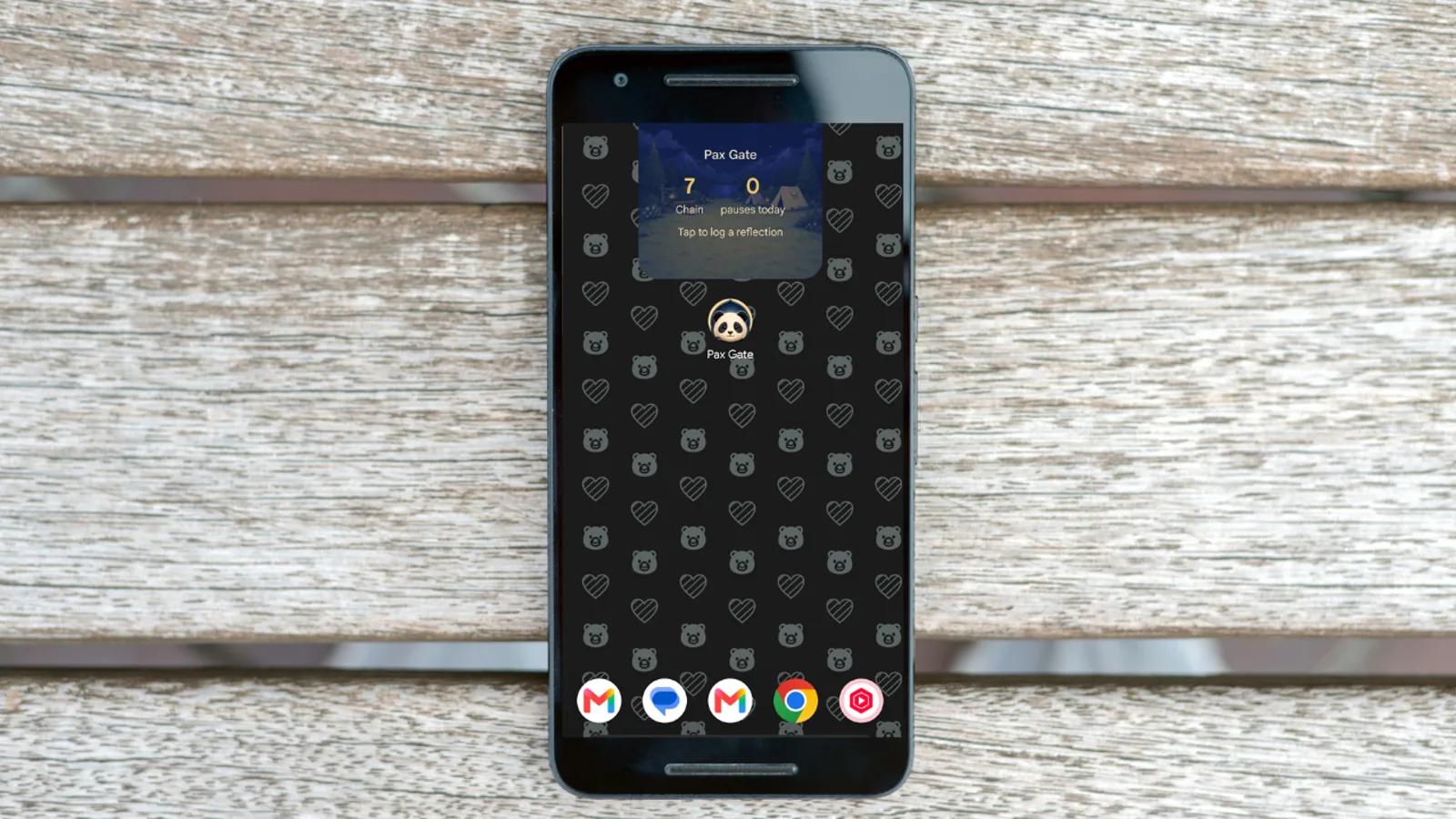
Pax Gate is the app blocker we built around a different idea than most. Instead of a hard lockout, it puts one small pause in front of the apps you scroll without thinking. The pause turns into a gratitude prompt, a quick reflection, or a mood check. Three seconds, not a fight. The apps you actually want to use are still there. The apps you reach for without thinking now ask you a question first. The mechanism is exactly what the friction research keeps pointing at.
Join the Pax Gate waitlist Most app blockers feel like punishment. Pax Gate feels like a friend who asks if you actually wanted to open the app.See what your hours are actually costing
The Screen Time Cost Calculator gives you a personalized estimate of what your phone time is costing in hours, sleep, focus, and money. A useful baseline for any of the interventions above.
Try the Screen Time Cost CalculatorThe 30-day setup
If you're going to commit to the whole audit, the version that holds is the 30-day setup. Don't try to do everything in one afternoon; the configuration changes are real, and the behavior changes take a couple of weeks to recalibrate. The sequence below is the one most adults find sustainable.
The 30-day sequence
- Days 1 to 3: Audit. Open your Screen Time / Digital Wellbeing weekly report. Read it honestly. Identify your top 2 apps. Do nothing else.
- Days 4 to 7: Notifications. Turn off all non-human notifications across all apps. This is the highest-leverage move, and it goes first.
- Days 8 to 14: Home screen audit. Page 1 is tools only, social and scroll in a folder on page 2 or 3, calm wallpaper.
- Days 15 to 21: OS controls. Downtime / Bedtime Mode set for 9 PM to 7 AM. App Limits on your top 2 apps. Separate Screen Time passcode.
- Days 22 to 28: Physical. Phone out of the bedroom. Charger somewhere inconvenient. No phone in the first 30 minutes of the morning.
- Day 29 to 30: Optional and powerful. Delete one heavy-use scroll app entirely. Take stock.
Related guides and tools
FAQ
How do I reduce screen time on my phone?
The single highest-leverage change is moving the phone out of the bedroom overnight. Most adults spend 30 to 90 minutes on the phone in bed, and that stretch is dramatically lower value than daytime use. After that, in order: turn off non-human notifications, set up iOS Downtime or Android Bedtime Mode for 9 PM to 7 AM, enable grayscale, and move scroll apps off home screen page one. These five changes alone typically reduce daily phone use by 60 to 120 minutes for adults starting from a heavy-default setup.
What is the iOS Screen Time passcode trick?
By default, Screen Time limits can be dismissed by the same person who set them, which makes them effectively suggestions. The version that works is setting a separate Screen Time passcode (Settings, Screen Time, Use Screen Time Passcode), either generated by someone else or sealed in an envelope you have to find. Once the passcode is separate from your device passcode and not in your head, the friction is structural rather than psychological. Most people who do this find their phone use drops measurably within the first week.
Does grayscale mode actually reduce phone use?
Yes. The TikTok, Instagram, and YouTube feeds are designed for color-saturated visual reward. Grayscale strips that out and makes the same content meaningfully less compelling to scroll. Multiple self-experiment reports and a growing research base suggest 15 to 30 percent reductions in daily phone time from grayscale alone. iOS: Settings, Accessibility, Display and Text Size, Color Filters, Grayscale. Android: Settings, Accessibility, Color Correction, Grayscale. Assign it as an accessibility shortcut so you can toggle it with three button presses.
Why aren't my app limits working?
Three common reasons. First, the Screen Time passcode is the same as your device passcode, which lets you dismiss limits without friction. Second, limits are set on big categories (Social, Entertainment) rather than specific apps, which feels arbitrary. Third, limits aren't paired with notification reduction, so the apps keep pulling you back in even when you can't open them. The limits that hold are app-specific, paired with notifications off, and have a passcode you don't have casual access to.
Should I delete social media apps or just limit them?
Both have a place. For apps you actively want to use moderately, limits work. For apps you don't actually want to use but keep using anyway, deletion works much better. The web version on a laptop is 10x the friction of the mobile app, which is enough to break the unconscious loop without removing the access. Most adults who delete a heavy scroll app report missing it dramatically less than they expected. Newport's Digital Minimalism reset (30 days off, then reintroduce only what you genuinely miss) is the cleanest sorting protocol.
How do I turn off notifications without missing important things?
Sort notifications by who or what they're from. Human-to-human (texts, calls, calendar reminders, alarms) stay on. App-to-human (the algorithm telling you about something) goes off. This is roughly 80 percent of notifications a typical phone delivers. Stothart et al. (2015) found that even unanswered notifications measurably degrade attention, so turning them off does real cognitive work, not just preference work.
What is the best phone setup to reduce screen time?
A consensus minimalist setup: home screen page 1 has tools only (phone, messages, maps, camera, calendar, weather); social and scroll apps live in a folder on page 2 or 3; all non-human notifications are off; grayscale enabled or scheduled for evenings; Downtime or Bedtime Mode set for 9 PM to 7 AM; phone charges in another room overnight; Screen Time passcode set separately from device passcode. This stack typically reduces daily phone use by 90 to 150 minutes for someone starting from heavy default.
Do Apple Screen Time and Google Digital Wellbeing actually work?
They work when configured properly. The default configurations are intentionally light. The features become effective when you add three things: a separate passcode, specific app limits rather than category limits, and Downtime or Bedtime Mode that overlaps your weakest hours. With those three changes, both work. Without them, both feel like a soft suggestion.
Sources
- Apple Inc. (2024). Use Screen Time on your iPhone or iPad. Apple Support documentation.
- Google. (2024). Digital Wellbeing. Official documentation.
- Eyal, N. (2014). Hooked: How to Build Habit-Forming Products. Portfolio.
- Hunt, M. G., Marx, R., Lipson, C., & Young, J. (2018). No more FOMO: Limiting social media decreases loneliness and depression. Journal of Social and Clinical Psychology, 37(10).
- Leroy, S. (2009). Why is it so hard to do my work? The challenge of attention residue when switching between work tasks. Organizational Behavior and Human Decision Processes, 109(2).
- Mark, G., Gudith, D., & Klocke, U. (2008). The cost of interrupted work: more speed and stress. Proceedings of CHI 2008.
- Misra, S., Cheng, L., Genevie, J., & Yuan, M. (2014). The iPhone effect: The quality of in-person social interactions in the presence of mobile devices. Environment and Behavior, 48(2).
- Newport, C. (2019). Digital Minimalism: Choosing a Focused Life in a Noisy World. Portfolio.
- Stothart, C., Mitchum, A., & Yehnert, C. (2015). The attentional cost of receiving a cell phone notification. Journal of Experimental Psychology: Human Perception and Performance, 41(4).
One last thing
The phone is the most carefully designed consumer product of the last 20 years, by some measures the most carefully designed product in history. The default settings reflect that design. Configuring it back in your favor isn't an act of self-discipline; it's an act of basic device hygiene. Most adults who run the full friction stack report something like "I can't believe the phone is this calm now." The phone was never the problem. The configuration was. The configuration is yours to change, and you can finish most of the work in an afternoon.